Koltrix
Mailbox photos and the BIMI helper: showing your logo in inboxes
Give each Koltrix mailbox a photo and set up BIMI so your logo can show in inboxes: who sees what, the one DNS record, and why Gmail needs a certificate.
On this page(7 sections)
People often ask for "my logo next to my emails" as if it were one setting. It is two different things, and mixing them up leads to wasted evenings. One is a small picture for each of your mailboxes that your team sees inside Koltrix. The other is your brand logo shown by the recipient's mail provider, which is controlled by standards, DNS and, for some providers, a paid certificate.
This post explains both, what you can expect from each, and how the helper in Koltrix handles the tedious parts. For the other direction, how Koltrix picks pictures for the people who write to you, read where sender logos come from in Koltrix.
Two things that look alike
A mailbox photo belongs to one address, such as maya@ or support@. You and your team see it inside Koltrix: in the sidebar mailbox list, the From picker when you write, the Team access grid, the address list in settings, and beside messages you sent from that address. It needs nothing but a picture.
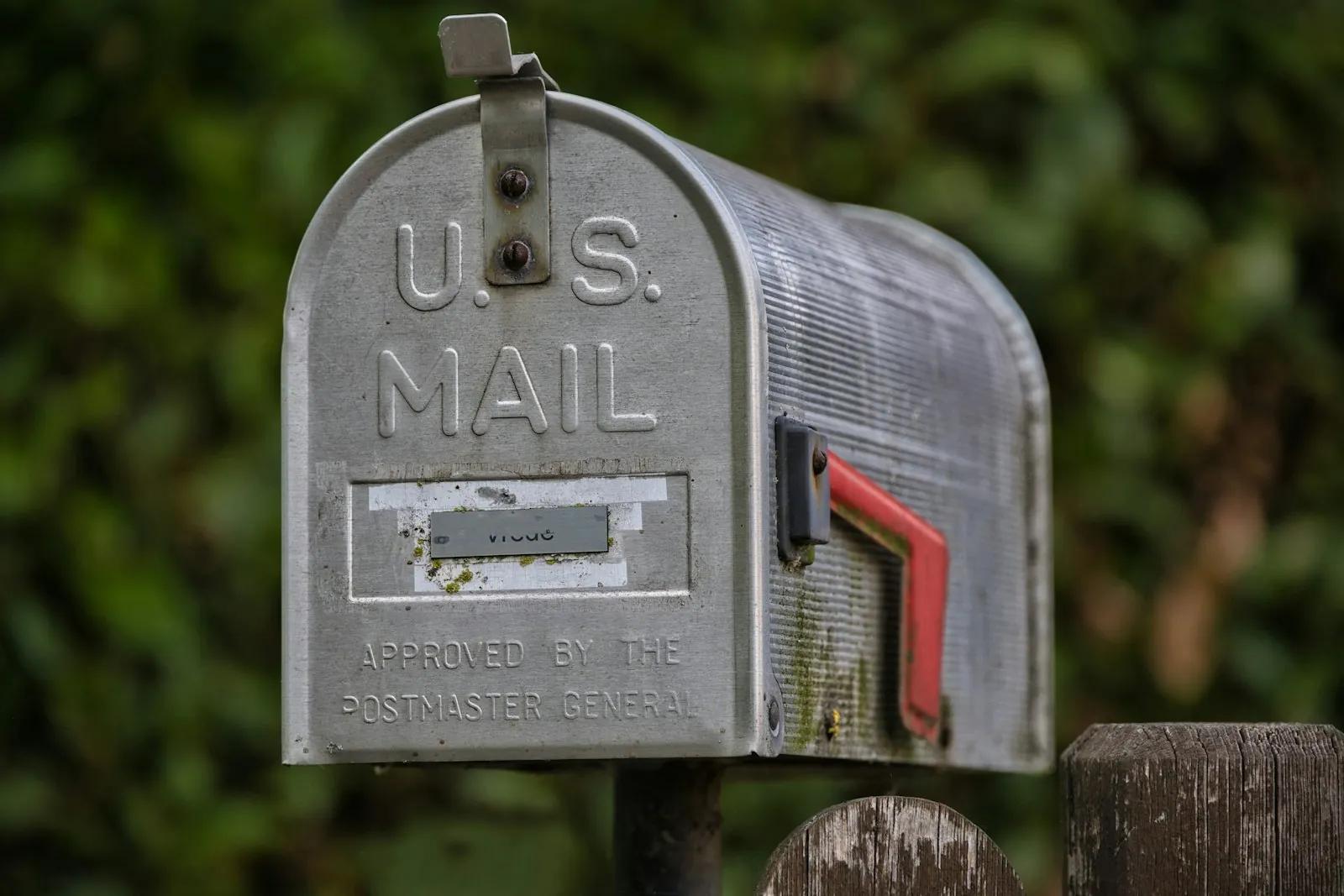
A BIMI logo belongs to your domain. BIMI (Brand Indicators for Message Identification) lets a mail provider show your logo beside mail from your domain. The people you write to see it, in inboxes that support it. It needs your DMARC policy set to enforce, a logo in a strict format, one DNS record and, for Gmail, a certificate you buy elsewhere.
Keep this table in your head and most confusion goes away: the photo is for your side of the screen, BIMI is for theirs.
Mailbox photos: the easy part
Open Settings, then Domains, open the domain, and choose the camera button on an address. Pick a PNG, JPG or WebP picture, drag and zoom it inside the circle, and press Use this photo. To go back, open the same dialog and press Remove photo.
A few details worth knowing:
- Only owners and admins can change a photo. Members and viewers see them.
- Koltrix crops and shrinks the picture to a small square and keeps nothing else from the file, so location and camera details in the original are dropped.
- The photo is stored by Koltrix. There is no field for a link to a picture on another website, on purpose: a link would be loaded by every teammate's browser, and you would be handing a stranger's server a view of your team's activity.
What shows when an address has no photo
Koltrix uses the first of these:
- the address's own photo;
- your domain's logo, if you uploaded one for BIMI;
- your workspace logo;
- colored initials.
That means one good domain logo gives every mailbox a sensible picture right away, and you can add personal photos where they matter, for example for a person's own address on a small team. Pictures on a shared address like support@ are usually better as the company mark than as one person's face, because the address outlives whoever answers today. If you are deciding how to name and organize addresses in the first place, see catch-all email addresses and why they attract spam and plus-addressing and aliases.
One small extra: some recipients' mail apps use Gravatar. If an address has a photo registered there, those apps may show it. That is separate from the photo you set in Koltrix.
BIMI: the part with prerequisites
BIMI is not magic, and no tool can promise that every inbox will show your logo. Providers show it only for domains that prove the mail is really theirs. Here is what has to be true:
- Your DMARC policy enforces.
p=quarantineorp=reject, applied to all mail. A policy ofp=noneonly monitors, and providers will not show a logo for it. If you are not there yet, moving from DMARC none to reject lays out a safe path, and SPF, DKIM and DMARC in plain English covers the basics. - Your mail passes SPF and DKIM. Mail sent through Koltrix is signed with your domain's key once your DNS records are in place.
- Your logo is in the right format. BIMI wants a square SVG in a restricted profile called SVG Tiny PS, small in size, with no scripts, no embedded pictures, no animation and no links to other files. Many ordinary logo exports fail for small reasons. Our post on BIMI and the SVG Tiny PS logo explains the format.
- One DNS TXT record points providers to the logo.
- For Gmail, a certificate. Gmail shows the logo only when your domain also has a Verified Mark Certificate (VMC), which needs a registered trademark, or a Common Mark Certificate (CMC). You buy it from a certificate provider outside Koltrix. VMC versus CMC explains the difference. Other providers differ: some show a BIMI logo without a certificate, and some do not support BIMI at all.
The honest summary: without a certificate you may still be set up correctly for providers that do not ask for one, and ready for the day you add one. But do not expect Gmail users to see your logo until you do.
What the BIMI helper does for you
In Settings, Domains, the domain page has a Logo section, closed until you open it. Only owners and admins see it. It works in four steps.
1. Upload your logo (SVG). Koltrix checks the file and tells you in plain words what to change if it is not acceptable. A file with small issues, such as a missing title, is saved with a note. A file with anything unsafe is refused and not stored.
2. Koltrix hosts it. Providers need a public HTTPS address for the logo. You do not need a web server: the logo is served from an address under api.koltrix.com that includes your domain. If you replace the logo, the address stays the same. If you remove it, the address stops working.
3. Add your certificate (optional). If you have a VMC or CMC, upload the PEM file with its chain. Koltrix checks that it has not expired, covers your domain, is for the BIMI purpose, was issued for exactly this logo and chains to a recognized authority. Never upload a private key: the helper refuses a file that contains one.
4. Copy the DNS record. The helper shows the exact TXT record with copy buttons. The name is default._bimi.yourdomain.com (some DNS providers want only default._bimi), and the value starts with v=BIMI1; followed by the address of your hosted logo, and the certificate address if you uploaded one. Copy the record again after you add or remove a certificate.
Koltrix never adds the DNS record for you and never fetches an address you type in. You stay in control of your DNS, which is the right default for something that affects how your mail is judged.
The live check
The helper checks when the page opens and has a Check again button. Each line is a pass, "needs a look" or "not passing", with the next step:
- DMARC record: a single record exists.
- DMARC is enforcing: quarantine or reject, for all mail.
- Logo file: a valid SVG is hosted. A warning means it is hosted but could be better, for example not square.
- BIMI record in your DNS: one record exists and points at the files Koltrix hosts.
- Certificate: none (a warning, and what Gmail needs), valid, expiring soon, expired, issued for a different logo or domain, or not recognized.
DNS changes take time to spread, so a line that fails right after you add a record may simply need a few minutes. Before you start, the BIMI readiness checklist is a good way to find problems early.
A sensible order of work
- Upload a domain logo first. It gives every mailbox a decent picture immediately.
- Add personal photos for the people who write to customers.
- Check your DMARC policy. If it is
p=none, plan the move to enforcement before anything else. - Prepare a BIMI-ready SVG and let the helper validate it.
- Add the DNS record and read the live check.
- If Gmail matters to your customers, decide whether a certificate is worth buying for you. It costs money and needs a trademark for a VMC. A CMC is the lighter option.
What not to expect
- A logo in every inbox on day one. Support differs by provider and some show nothing without a certificate.
- A verified look inside Koltrix from your own upload. Inside Koltrix, your photo and logo are simply how your own addresses appear to your team.
- Instant results. Providers cache what they find, so a changed logo can take a while to show.
If you want the full steps in one place, the docs have a page on showing your logo in inboxes and mailbox photos. And if you use an assistant with your inbox, nothing here changes how it works: the picture settings are plain account settings, separate from the MCP connection.
Start with Koltrix
Your domain, one inbox, and an API that sends.
A team inbox where AI sorts and drafts (nothing is sent without your click), plus the transactional API and SMTP relay your product sends with. 7 days free, no card.